
A salesperson who never leaves the store
Growing Shopify stores hit the same wall: WhatsApp overflows, questions come in at 11 p.m. and the team answers in the morning, when the customer has already bought elsewhere. A chatbot for Shopify exists to hold that line — answer right away, from the real catalog, and walk the customer to checkout without anyone being online.
This is a straight account of what a Shopify chatbot needs to do, what Nola AI does today, and what it does not do yet.
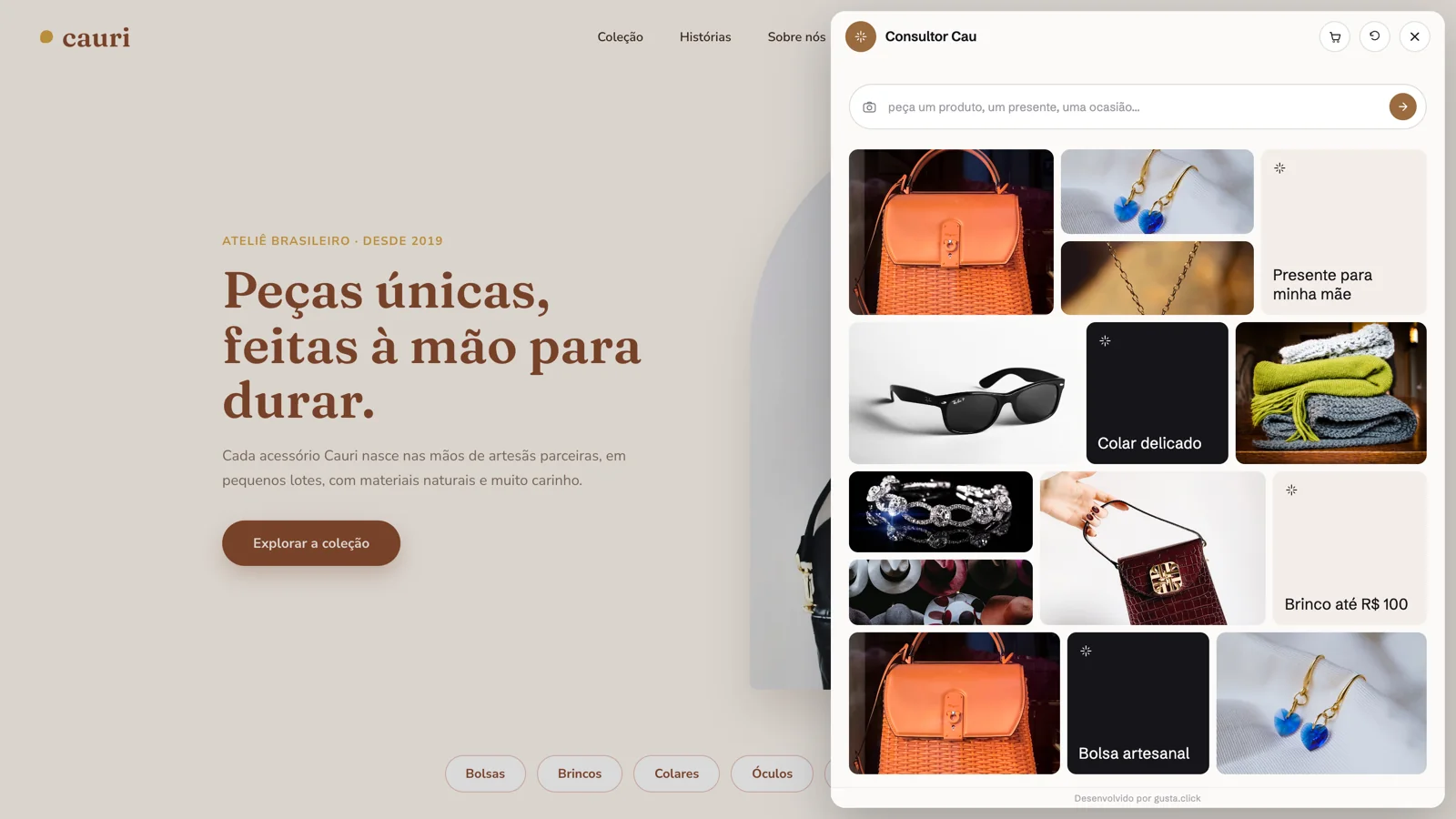
What a Shopify chatbot has to do
A generic website chatbot answers with text. An ecommerce chatbot has to answer with the product. The minimum list:
- Read the real catalog — price, stock, variants and photo — not a copy pasted into a document.
- Answer “which is cheapest”, “anything under $300”, “do you have it in blue” with the right number, not an approximation.
- Build the cart in the conversation and hand the customer to the store's own checkout.
- Know when to stop and pass to a person, with the history attached.
- Show what happened: how many conversations turned into clicks, carts and checkouts.
If the tool does not do the first three, it is a FAQ dressed up as a chat.
Native app or script in the theme?
There are two ways to put an assistant on a Shopify store:
| Shopify app | Script in the theme | |
|---|---|---|
| Install | From the app store, with screens inside the Shopify admin | One line in theme.liquid or via Google Tag Manager |
| Billing | On the Shopify invoice, through Shopify Billing | Card straight in the vendor's dashboard |
| Catalog | Connected through the app's permissions | Connected through API credentials |
| Best for | Everything inside Shopify | Already running the assistant on other stores |
Nola AI ships both. The app has native screens and bills through Shopify Billing; the script is for anyone who prefers installing via GTM or already has a dashboard account. The widget and the assistant are the same.
How Nola AI works on a Shopify store
Synced catalog
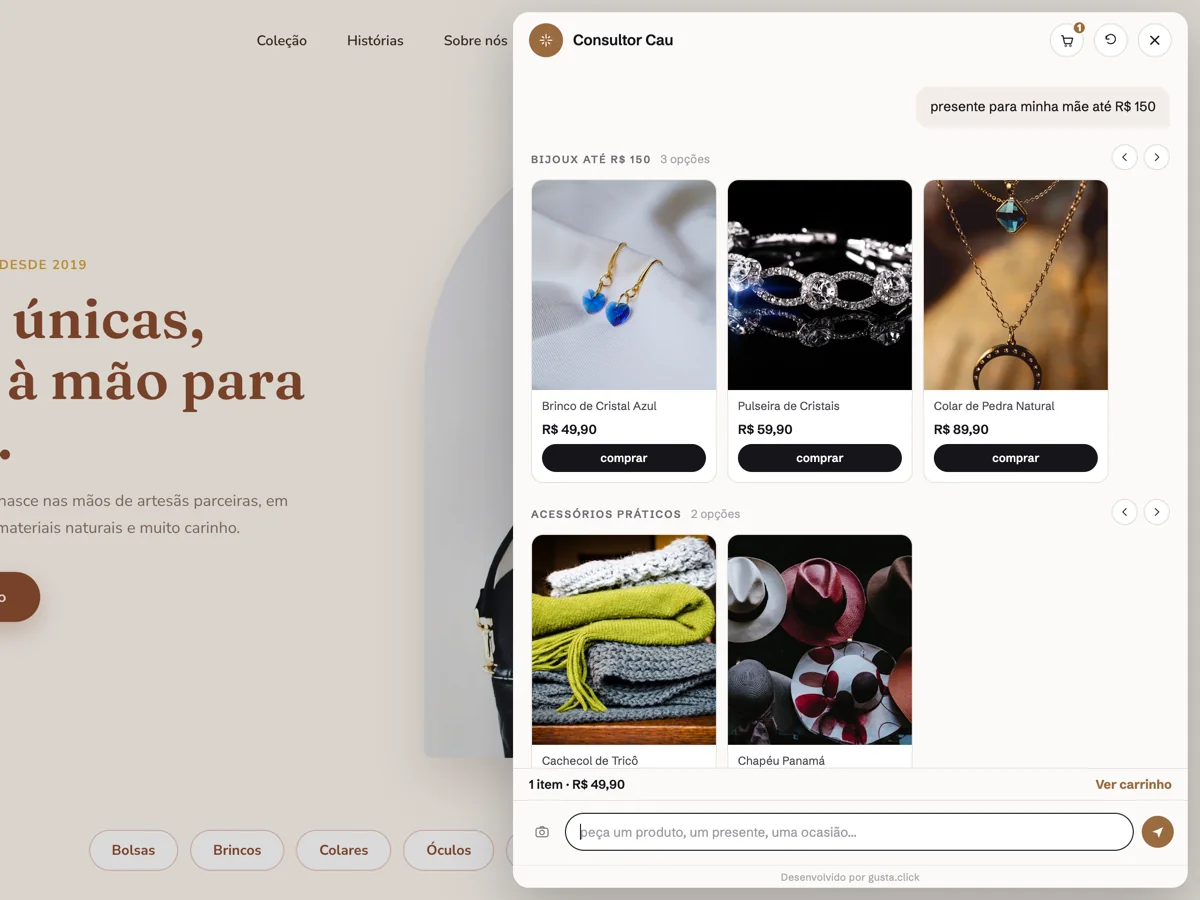
On connection, Nola syncs the whole catalog in the background — price, stock, variants and images. From then on, every product in the conversation is a clickable card with the current photo and price.
Answers from a query, not a guess
Comparison and filter questions (“most expensive”, “cheapest”, “how many”, “under $X”) do not go through text similarity. They become a real query against the catalog, so the answer is exact. Open questions (“a gift for my mother”, “something comfortable for work”) use the catalog and the store content to recommend.
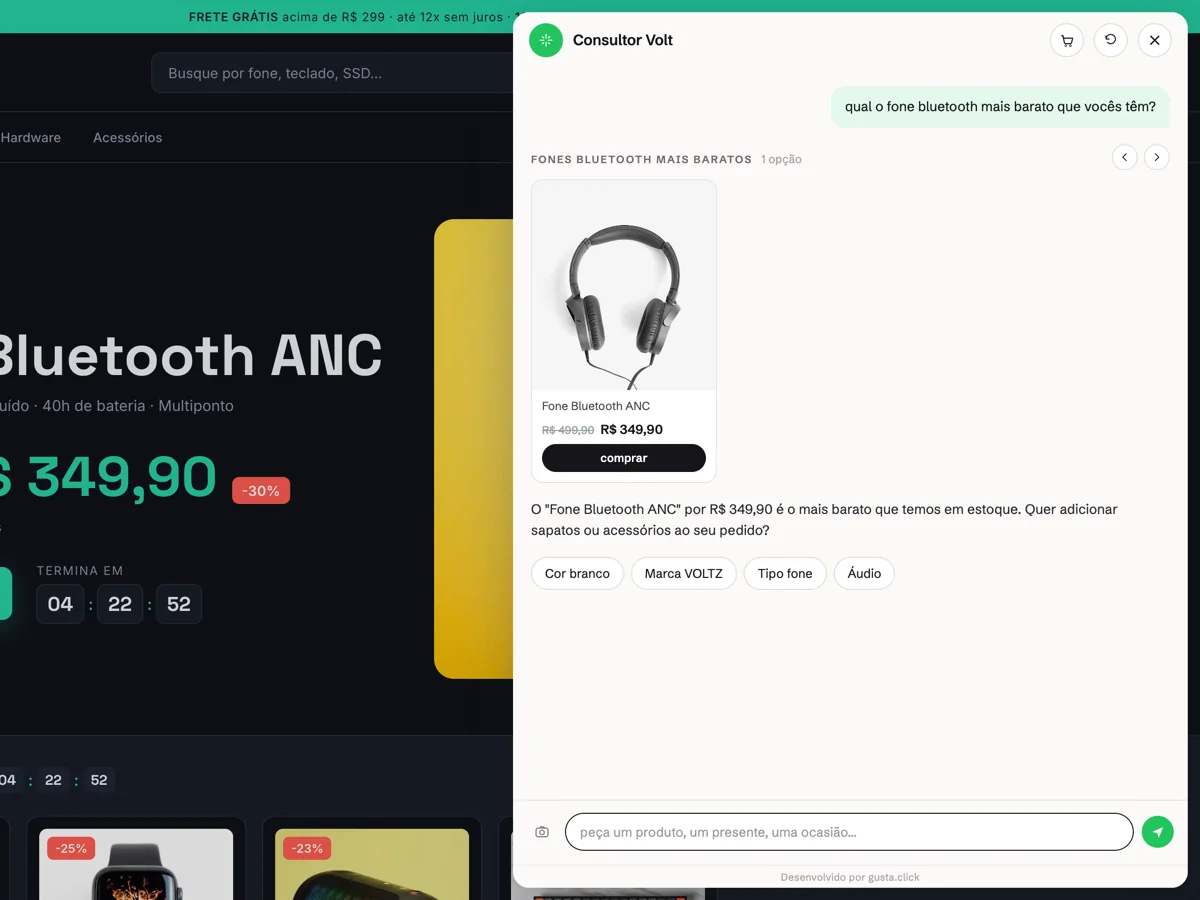
Cart and native checkout
The customer adds to the cart inside the chat — by button or by talking — and goes to Shopify's own checkout through a deep link, with the order attributed by UTM. If the store prefers closing on WhatsApp, that is the fallback.
Human support when it is needed
When a case falls outside the script, the conversation joins a real-time queue in the dashboard, respects the configured business hours and can open the store's WhatsApp. Leads are captured and validated along the way.
What it does not do on Shopify yet
Shipping quotes and order status inside the chat exist only for VTEX stores today. On Shopify those questions fall back to the store content (policies and FAQ) or go to human support. Better to know that now than in the first week.
Two modes, one widget
- Guided flow: a flowchart editor with chained questions, for support that has to stay predictable. It ships with 12 ready-made templates by niche — apparel, jewelry, electronics, games, furniture, auto parts, vehicles, woodworking, repair services, clinics, software and generic — and reads free text, extracting several details from a single sentence.
- Assisted Shopping: the consultant mode, off by default. Fewer questions, more recommendation, side-by-side comparison and assembled sets. The difference is covered in detail in AI chatbot vs AI personal shopper.
Each bot has three slots, so you can test a new flow without touching what is live.
Installation in four steps
- Install the app on the Shopify store (or paste the script in the theme, if you prefer).
- Connect the catalog — the sync runs in the background.
- Train on what already exists: policies, FAQ, tone of voice and the bot's goal. Documents in txt, csv or pdf go into the knowledge base.
- Publish. The assistant shows up on the store; conversations, leads and carts land in the dashboard.
The dashboard also has per-platform tutorials, so anyone already running Nola on WooCommerce, VTEX or Magento will recognize the process. For other platforms, see the step-by-step guide on how to add an AI chatbot to your website.
What to measure after publishing
- Four-step funnel: conversation → product click → cart → checkout.
- Frequent questions: what customers ask most becomes training material for the bot and content for the store's SEO.
- Leads: who left contact details and at which point in the conversation.
- CSV export to cross with Shopify's order report.
After 50 real sessions, the dashboard suggests flow improvements based on what customers actually asked.
Frequently asked questions
Do I need to touch the store theme?
No. Through the app, installation happens inside the Shopify admin. If you prefer the script, it is one line in the theme or in Google Tag Manager.
How is it billed?
Through the app, on the Shopify invoice, via Shopify Billing. There are 14 free days before any charge.
Does the bot make up products or prices?
No. It only shows what exists in the synced catalog and says so when it has to relax a filter to find options.
What happens when the customer wants a person?
The conversation joins the human support queue in the dashboard, with the history. Outside the configured hours, the bot says so and can offer the store's WhatsApp.
Does it work for a store that also sells on WhatsApp?
Yes. Shopify's native checkout is the default path, and WhatsApp stays as the fallback for customers who prefer closing there.
CTA
Want to see the assistant running on your Shopify store? Nola AI comes with a 14-day free trial. If your operation needs integration beyond the standard, talk to GUSTA.
Comments
No comments yet. Be the first to comment.