
The install is one line. The real work is everything around it
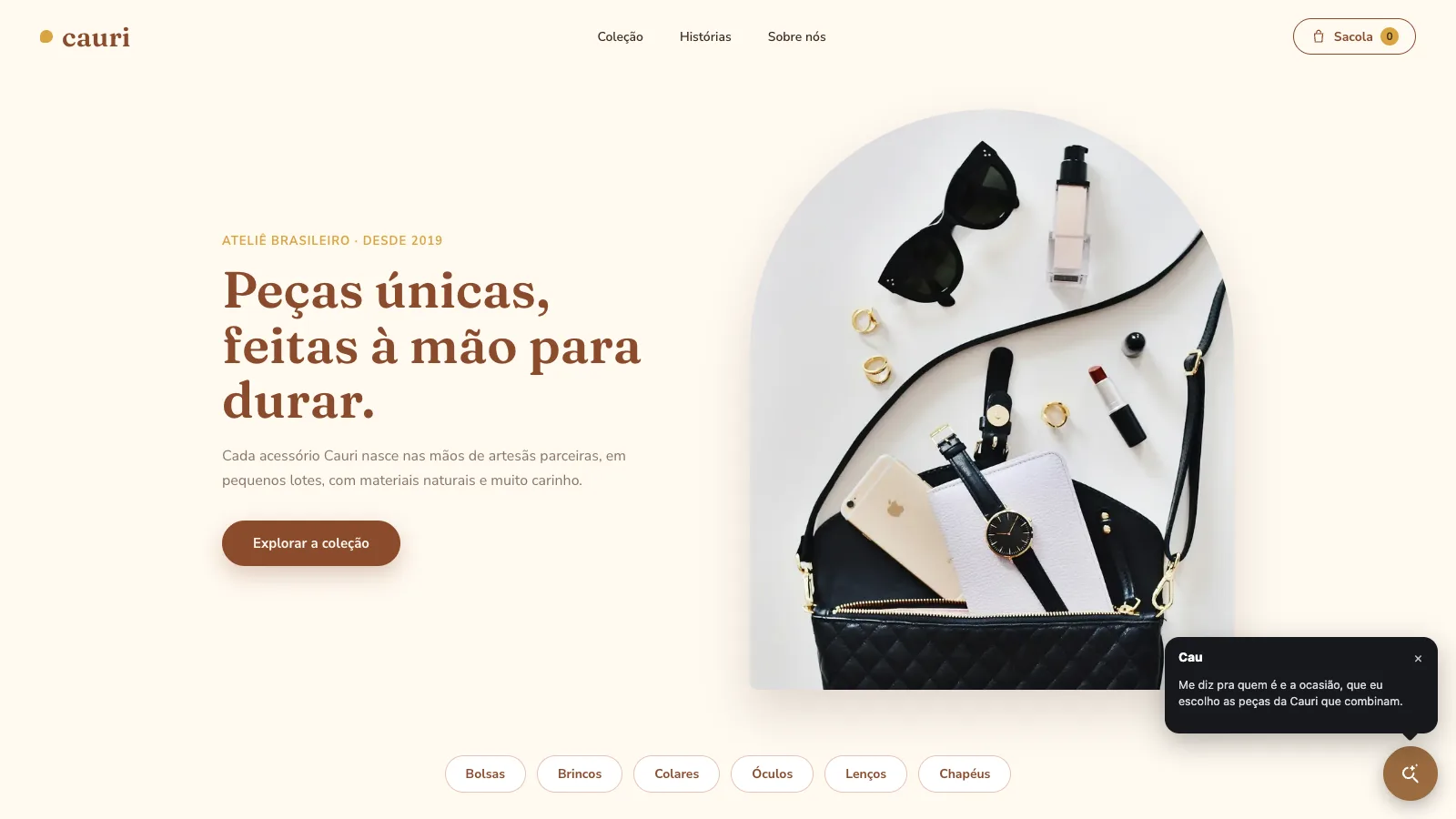
Adding a chatbot to a website almost always means pasting one line of script right before the closing </body> tag. The only thing that changes between platforms is where that line goes. The part that takes effort comes before, when you connect the catalog and write down store policies, and after, when you test.
This guide walks through each platform in the order our clients at GUSTA usually ask about them, and ends with a checklist to run before you tell the team the chat is live.
Before you paste any code
Get three things ready before opening your site admin:
- The install snippet. Every chat tool generates one. Copy it from the dashboard and do not edit it.
- Admin access to the site, the theme or Google Tag Manager. On larger stores the agency often holds that access, so sort it out first.
- The content the bot will use. Return policy, delivery times, payment methods, frequent questions. A store chatbot also needs the catalog connected. If the script goes live before that, the chat opens but cannot answer price or stock questions.
What a chatbot snippet looks like
This is the snippet format for Nola AI, the sales assistant GUSTA builds. Other tools follow a similar pattern.
<script async src="https://chat.gusta.click/widget.js"
  data-bot-id="YOUR_BOT_ID"
  data-token="YOUR_TOKEN"></script>
The async attribute lets the browser download the script without holding up the page. The data-bot-id and data-token attributes tell the widget which assistant to load, and they come pre-filled in the dashboard. One simple rule prevents half of all support tickets: paste the snippet once, in a single place. Having it in the theme and in Tag Manager at the same time is the most common reason for a duplicated chat.
WordPress and WooCommerce
WordPress gives you three safe ways to publish the script. Pick one.
Block themes (Twenty Twenty-Four, Twenty Twenty-Five and similar). Go to Appearance, Editor, open the footer template part and add a Custom HTML block with the snippet. Save. The footer shows on every page, so the chat does too.
Classic themes. Use a child theme and add the script on the wp_footer hook in functions.php:
add_action('wp_footer', function () {
  echo '<script async src="https://chat.gusta.click/widget.js" data-bot-id="YOUR_BOT_ID" data-token="YOUR_TOKEN"></script>';
});
Do not edit the parent theme's functions.php. The next theme update wipes the change and the chat disappears without warning.
Google Tag Manager. If the site already runs GTM, use it. The steps are further down.
One thing that catches a lot of WooCommerce stores: performance plugins such as WP Rocket, Autoptimize and LiteSpeed Cache can delay JavaScript until the first click or scroll. In practice the chat only appears after the visitor interacts. Add the script's domain to the delay and minification exclusion lists.
With Nola, the WooCommerce integration reads catalog and stock without installing a WordPress plugin. What changes in the conversation once the assistant reads your Woo catalog is covered in chatbot for WooCommerce. The details are on the Nola AI for WooCommerce page. If your store needs business rules no plugin covers, the usual answer is a custom WooCommerce plugin.
Shopify
On Shopify, chat tools get in one of two ways.
Through an app with a theme embed. This is the recommended route. After installing the app, open Online Store, Themes, Customize, and switch on the app's block in the app embeds area. Save. No code in the theme, and if the app is uninstalled the block goes with it. That is how Nola AI for Shopify works.
Through theme code. If the tool only gives you a script, go to Themes, Edit code, open theme.liquid and paste the line before </body>. Duplicate the theme before editing. And remember the code does not follow you when you switch themes.
To see what a chatbot has to do inside a Shopify store beyond showing up on screen, read the guide on chatbots for Shopify.
Wix
In the Wix dashboard, open Settings and look for Custom Code in the advanced settings area. Click add, paste the script, choose Body, end as the position and apply it to all pages. The feature requires a paid plan with a connected domain. If the option is missing, that is almost always why.
Webflow and Squarespace
Webflow: in Site settings, Custom code tab, paste the script into the Footer code field and publish the site. Until you publish, the chat will not show on your domain. Custom code on Webflow requires a paid plan.
Squarespace: use Code Injection and paste into the Footer field. The option is available on plans that include code injection.
VTEX
On VTEX, the simplest path is usually Google Tag Manager, which the platform supports through an app. The script goes in without touching any Store Framework component. The Nola AI for VTEX page explains what the native connector reads, and the chatbot for VTEX article covers shipping quotes and order status inside the conversation.
Google Tag Manager
GTM works for any platform that already has the container installed:
- Under Tags, click New.
- In Tag Configuration, choose Custom HTML and paste the script.
- Under Triggering, choose All Pages.
- Save and use Preview to confirm the tag fires.
- Click Submit and publish the version.
Forgetting step 5 is the classic mistake. A saved but unpublished tag only exists inside GTM. Also, if the site uses a consent banner wired into GTM, check which category the tag landed in so it is not blocked without you noticing.
React and Next.js
React with Vite or Create React App: paste the script into index.html, before </body>.
Next.js with the App Router: use the Script component in the root layout. The chat loads once and does not reload on every route change.
import Script from "next/script";

export default function RootLayout({ children }: { children: React.ReactNode }) {
  return (
    <html lang="en">
      <body>
        {children}
        <Script
          src="https://chat.gusta.click/widget.js"
          data-bot-id="YOUR_BOT_ID"
          data-token="YOUR_TOKEN"
          strategy="lazyOnload"
        />
      </body>
    </html>
  );
}
The lazyOnload strategy waits until the page has finished loading. For an assistant that sits in the corner of the screen, that is the right balance between speed and availability.
After installing: what to test
Pasting the snippet takes two minutes. Testing it properly takes about fifteen, and that is what saves you from learning about a problem through a customer complaint.
- Open the site in a private window. Cache and an admin session hide errors.
- Test on a real phone. The chat button must not cover the WhatsApp button, the cookie banner or a sticky buy bar.
- Ask three questions customers ask: one about price, one about policy (returns, for example) and one the bot should not be able to answer. The third one shows whether it admits it does not know or makes something up.
- Check that the conversation shows up in the tool's dashboard with the full history.
- Run PageSpeed Insights before and after. An async script should not slow the page down. If it did, something is loading in a blocking way.
When the chat does not show up
It does not appear anywhere. Open the browser console (F12). If there is an error saying the script was blocked, the site probably has a Content Security Policy. Allow the script's domain in script-src and the API domain in connect-src. With Nola, the console message data-bot-id/data-token ausentes no <script> means an editor stripped the attributes from the snippet. Paste it again without going through a rich text editor.
It appears twice. The script lives in two places. Check the theme, GTM and any header and footer plugins.
It only appears after scrolling. A performance plugin is delaying JavaScript. See the tip in the WordPress section.
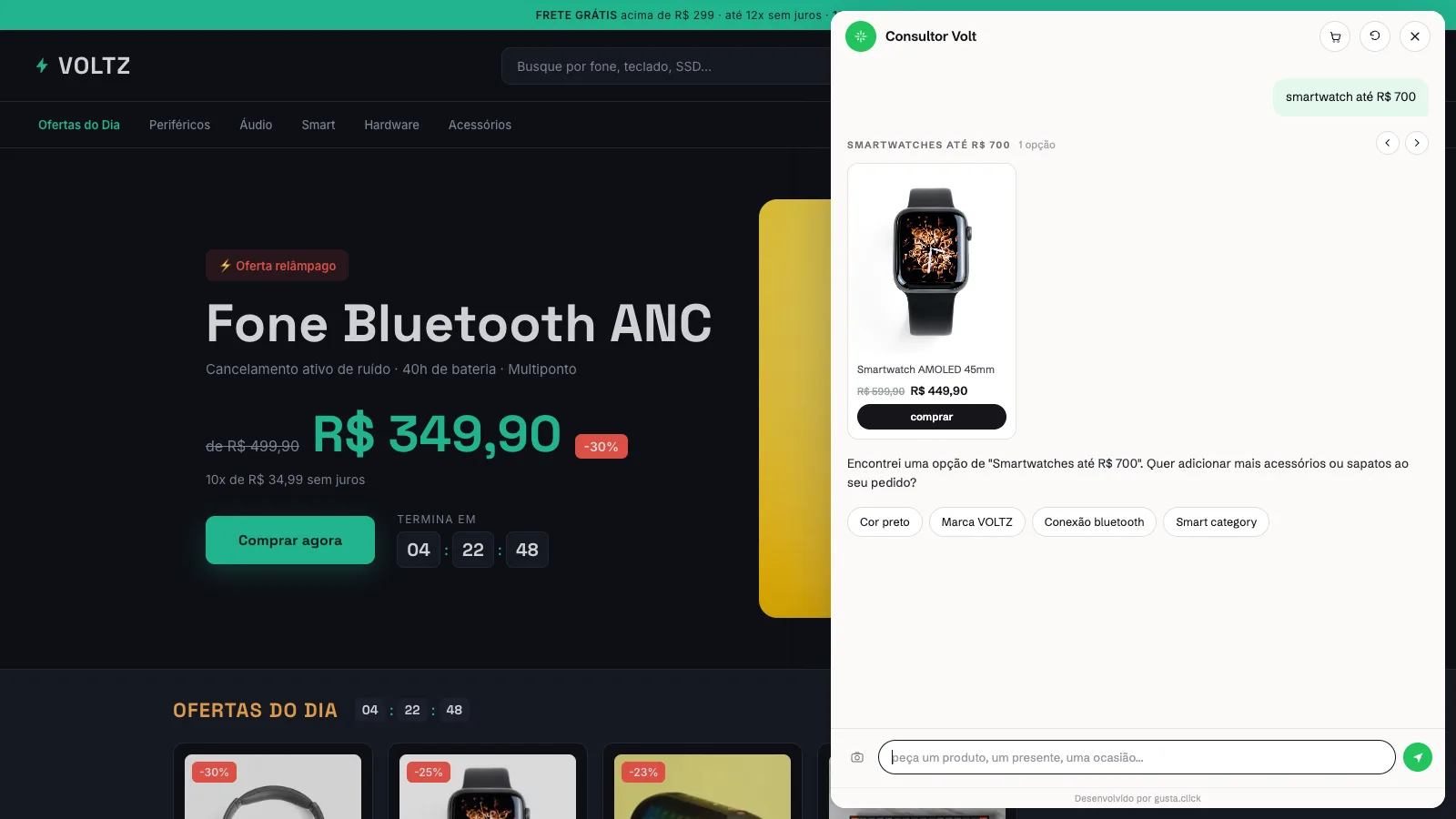
It appears but does not know prices or stock. That is not an install problem. The catalog is not connected, or the first sync has not finished yet.
Installing is quick. Training is what makes the difference
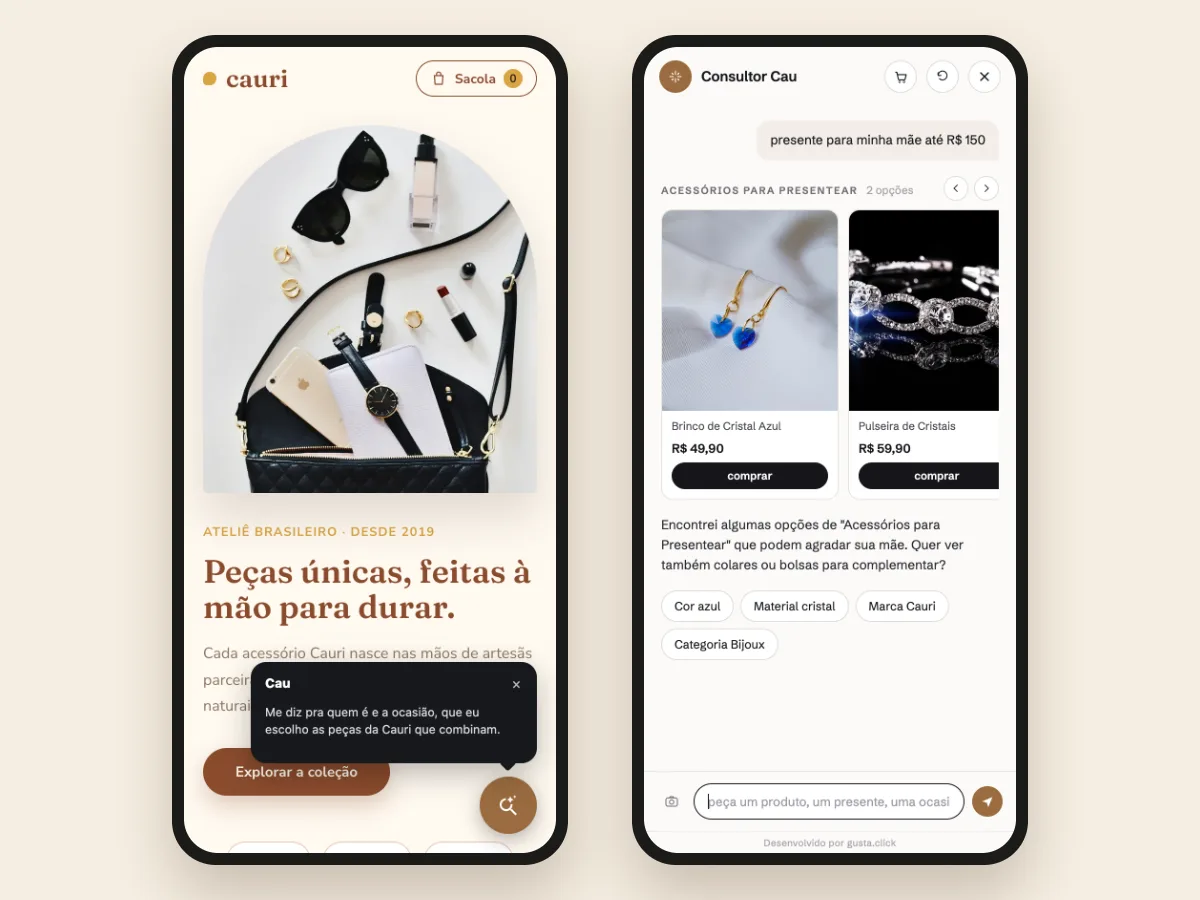
A chatbot that is installed but poorly trained says "sorry, I did not get that" very politely. After the script, set time aside to add store policies, the questions your support team hears most and the brand's tone of voice. If you are still choosing a tool, read the comparison between an AI chatbot and an AI agent and the guide on how much an AI chatbot costs.
Frequently asked questions
Does adding a chatbot slow down my website?
It should not. With the script loaded asynchronously, the browser keeps rendering the page while the chat downloads in parallel. Compare PageSpeed Insights before and after the install to be sure.
Do I need a developer to install it?
On most platforms, no. WordPress, Wix, Webflow, Squarespace and Shopify all have a field for code or an app. On Next.js, React or sites with a Content Security Policy, it helps to have someone technical around.
Can I show the chat on some pages only?
Yes. In Google Tag Manager, swap the All Pages trigger for one that filters by URL path. In Wix, the custom code field itself lets you pick the pages.
Does a chatbot work on a site that is not a store?
It works for support, scheduling and lead capture. Nola AI is built for ecommerce because it reads the catalog and builds carts. For service businesses, GUSTA builds custom assistants, as in the Vixting case study.
Can I test before the chat is visible to everyone?
Yes. Publish it on a hidden page first, or use Google Tag Manager's preview mode, which shows the tag only in your browser.
CTA
If your store runs on VTEX, Shopify, WooCommerce or Magento, you can try Nola AI free for 14 days, no card, and follow this guide with your own catalog. If your site needs an integration beyond the standard, talk to GUSTA.
Comments
No comments yet. Be the first to comment.